How to Check and Customize Mouse Polling Rate (Hz)
When selecting a gaming mouse, DPI is not the only metric that shapes sensor accuracy. A less discussed but equally critical setting is **Mouse Polling Rate (Hz)**. The polling rate determines how frequently your mouse reports its physical position to the PC processor. This guide explains what polling rates are, how they affect gaming, and how to configure them.
1. Defining Polling Rate Speeds
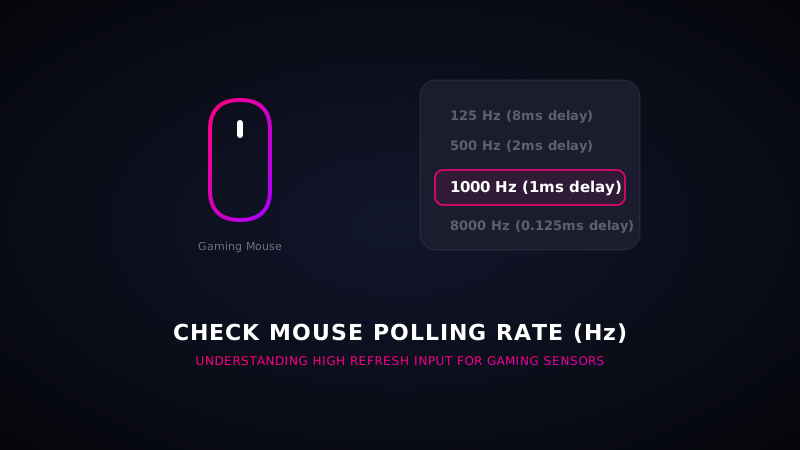
Mouse polling rates are measured in Hertz (Hz) and translate directly to response delay times:
- 125 Hz (8ms delay): Standard office configuration. The mouse position reports 125 times per second. Cursor movement can feel slightly jittery on high refresh rate monitors.
- 500 Hz (2ms delay): Balanced setting. Smooth cursor movements, often preferred on budget laptops to save battery.
- 1000 Hz (1ms delay): The gaming standard. Position reports every single millisecond, resulting in ultra-smooth, pixel-perfect aiming.
- 4000 Hz / 8000 Hz (0.25ms - 0.125ms delay): High-end esport specs. Requires high-frequency CPUs to process the massive stream of position reports.
2. How to Check Your Mouse Polling Rate
To measure your active Hz rate, you can use browser-based mouse benchmarks. When you move the mouse rapidly in circles, the diagnostic script logs the intervals between mouse events. If the average interval is **1ms**, your mouse is running at **1000Hz**. If the average interval is **8ms**, it is locked at **125Hz**.
Test Mouse Clicking Performance
Verified your polling rate? Now test your raw clicking speed and rank using our interactive sound-responsive CPS diagnostic pad.
Start CPS Tester3. How to Change Polling Rate Settings
Most gaming brands do not support Windows setting controls for polling rates. Instead, you change them via proprietary brand software:
- Open your mouse software utility (e.g., **Logitech G Hub, Razer Synapse, or SteelSeries GG**).
- Select your active mouse device.
- Navigate to the **Performance** or **Settings** tab.
- Locate **Polling Rate** or **Report Rate** and select **1000 Hz**.