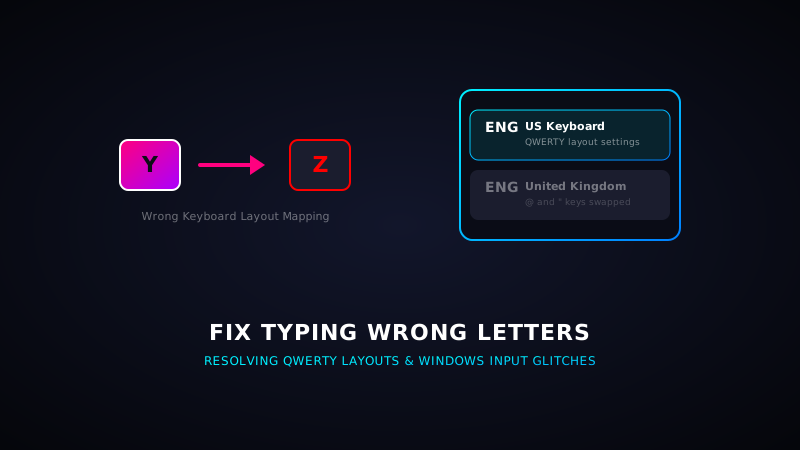
How to Fix Keyboard Typing Wrong Letters and Swapped Keys
Few computer bugs are as confusing as a keyboard typing wrong letters. You press the **"Shift + 2"** keys to type the **"@"** symbol, but a double quote **"** appears instead. Or, you type a normal letter like **"U"** or **"O"**, and it registers as a number **"4"** or **"6"**. Rest assured, your keyboard is almost certainly not broken. These glitches are caused by incorrect layout configurations or system settings. This guide shows you how to resolve them.
1. Fix: Swapped @ and " Keys (US vs. UK Keyboard Layout)
If your **@** and **"** keys are swapped, Windows is using a **United Kingdom (UK)** keyboard layout instead of the standard **United States (US)** layout.
- Press Windows Key + Spacebar to cycle through your active keyboard layouts. Keep pressing until it switches back to **English (United States) - US**.
- To delete the incorrect layout, open Settings (Win + I) > Time & Language > Language & Region. Click the three dots next to English (United Kingdom), and select **Remove**.
2. Fix: Keyboard Typing Numbers Instead of Letters
If typing letters on your laptop keyboard outputs numbers (e.g., U becomes 4, I becomes 5), **Num Lock (Number Lock)** is active on a compact laptop that lacks a dedicated numpad. Compact laptops overlay the numpad over standard letters to save space.
- Locate the NumLock or Num Lk key on your keyboard. (Often located on the F11, F12, or Insert keys).
- Press the **NumLock** key (or hold the **Fn key + NumLock** together) to disable it. Your keys will instantly return to normal letter outputs.
Diagnose Your Keyboard Map
Wanna see which characters your keyboard registers when you press a key? Open our diagnostic console to check your inputs in real-time.
Start Layout Test3. Fix: Wrong Characters on Specific Keys (Language Bar Glitch)
If you press **"Y"** and **"Z"** registers instead, Windows has switched to a European QWERTZ or AZERTY language profile.
- Press **Win + I** to open Settings.
- Go to **Time & Language > Language**.
- Make sure **English (United States)** is at the top of the preferred languages list. Drag it to the top if it is not.