How to Fix Sticky Keys on Windows 10 & 11
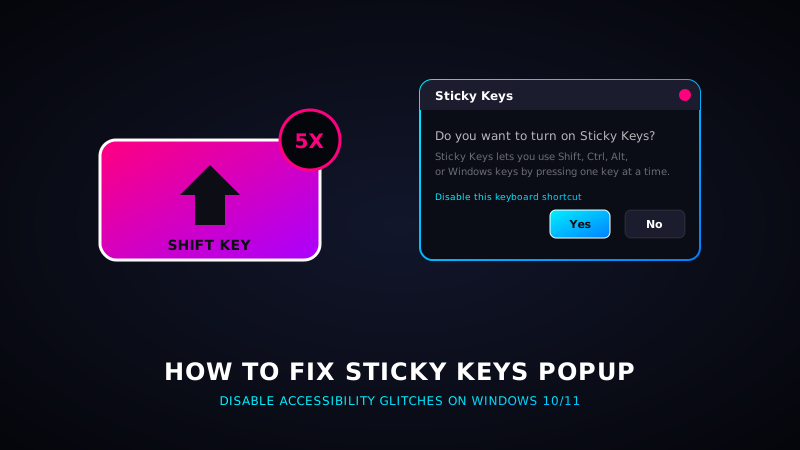
If you are in the middle of an intense gaming session or typing an email and press the **Shift key five times in a row**, a Windows popup will interrupt you with a high-pitched beep: *"Do you want to turn on Sticky Keys?"* This accessibility shortcut is designed to help users who cannot hold down multiple keys at once, but for gamers and fast typists, it is an annoying distraction. This guide shows you how to turn off Sticky Keys permanently on Windows 10 and Windows 11.
1. What Are Sticky Keys?
Sticky Keys is a built-in accessibility feature in Windows. It allows modifier keys like **Shift**, **Ctrl**, **Alt**, or the **Windows Key** to remain active (stuck) after you press them once. For example, to type "Ctrl + C" on a keyboard with Sticky Keys active, you press Ctrl first, release it, and then press C.
While useful for certain physical accessibility needs, the default trigger (pressing Shift 5 times rapidly) is easily activated by accident in video games where Shift is used to run or crouch.
2. How to Turn Off Sticky Keys on Windows 11
To disable both the feature and its keyboard shortcut trigger in Windows 11:
- Press Windows Key + I to open Windows Settings.
- Select Accessibility from the left-hand sidebar menu.
- Scroll down and click on Keyboard under the Interaction section.
- Locate Sticky Keys and toggle the switch to Off.
- Click on the Sticky Keys row to expand the settings page.
- Toggle **"Keyboard shortcut for Sticky Keys"** to **Off**. This disables the "Shift 5 times" trigger permanently.
- Uncheck **"Show the Sticky Keys icon on the taskbar"** and **"Sound a sound when modifier keys are pressed"** to disable the warning beep.
Test Your Modifier Keys
Cleaned up your Windows settings? Open our diagnostic tool to test if your Shift, Ctrl, and Alt keys register and behave normally.
Test Keys Now3. How to Turn Off Sticky Keys on Windows 10
If you are using Windows 10, follow these steps:
- Open the Start Menu and click the gear icon to open Settings.
- Click on Ease of Access.
- On the left sidebar, scroll down and click on Keyboard.
- Find **Use Sticky Keys** and toggle the switch to Off.
- Uncheck the box next to **"Allow the shortcut key to start Sticky Keys"** (this disables the five-time Shift key trigger).
4. The Control Panel Method (Alternative)
If you prefer using the classic Windows Control Panel:
- Open the Start Menu, type
control panel, and press Enter. - Go to Ease of Access, then click on Ease of Access Center.
- Click on Make the keyboard easier to use.
- Under the *Make it easier to type* section, click on Set up Sticky Keys.
- Uncheck the box that says Turn on Sticky Keys when SHIFT is pressed five times.
- Click Apply and then click OK.