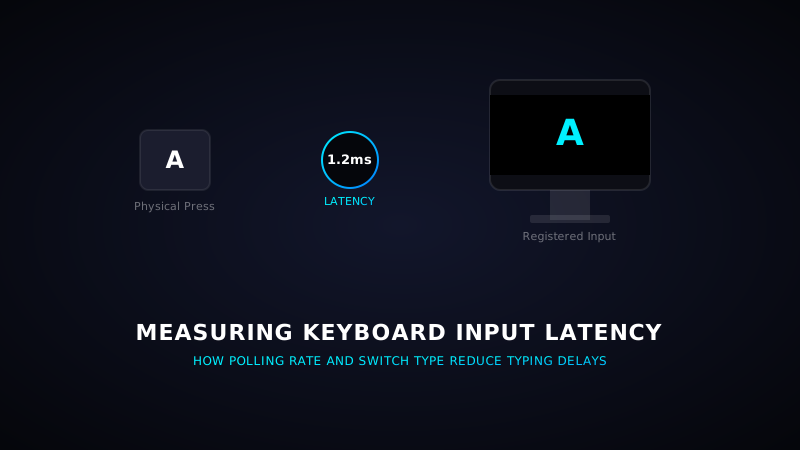
How to Test Keyboard Input Latency & Response Delay
For competitive gamers, keystroke response speed is just as important as screen refresh rates or internet ping. A delay of 15 milliseconds can mean missing a crucial dodge or shield activation. Keyboard input speed is determined by **Input Latency** (the total time it takes for a key press to reach your PC screen). This article explains how keyboard latency is measured and how to check your device.
1. What Causes Keyboard Latency?
Keyboard input delay is shaped by three distinct stages:
- Mechanical Switch Actuation Delay: The time it takes for the key switch stem to travel down and complete the circuit, including the de-bounce time to verify the signal (typically 2ms to 12ms).
- Scan Rate: How often the keyboard's internal microchip scans the key matrix for inputs (e.g., 1000Hz scans every 1ms).
- USB Polling Rate: How often your PC requests input data from the keyboard controller (usually 125Hz to 1000Hz).
2. How to Test Keyboard Delay
Since standard web browsers cannot access raw hardware interrupts, web-based testers measure **Keyboard Input Latency** relative to the browser scan loops. A high-end gaming keyboard will average a response delay under **1.5ms to 3ms**, whereas cheap membrane models can exceed **15ms**.
Check Your Key Latency Performance
Wanna see if your keyboard registers keystrokes instantly? Run our live neon diagnostic matrix test to check input registration times.
Run Latency Test3. How to Reduce Keyboard Latency
- Use a **wired connection** instead of Bluetooth. Bluetooth connection latency can add 8ms to 20ms of delay.
- Plug the keyboard directly into a **USB 3.0 or USB 3.2 port** on your motherboard instead of a external USB hub.
- Choose keyboards with **Optical switches** (which use light beams to actuate, requiring zero de-bounce delay) or **Hall Effect switches** (magnetic sensors).