What is Mouse Acceleration & Why You Should Disable It
If you play competitive PC shooters like Valorant, Counter-Strike, or Apex Legends, aiming consistency is everything. You practice muscle memory for hours so that flicking your wrist a specific distance translates to a perfect headshot on screen. However, if a setting called **Mouse Acceleration** is enabled, your muscle memory is useless. This article explains what mouse acceleration is and why you should disable it for gaming.
1. Defining Mouse Acceleration
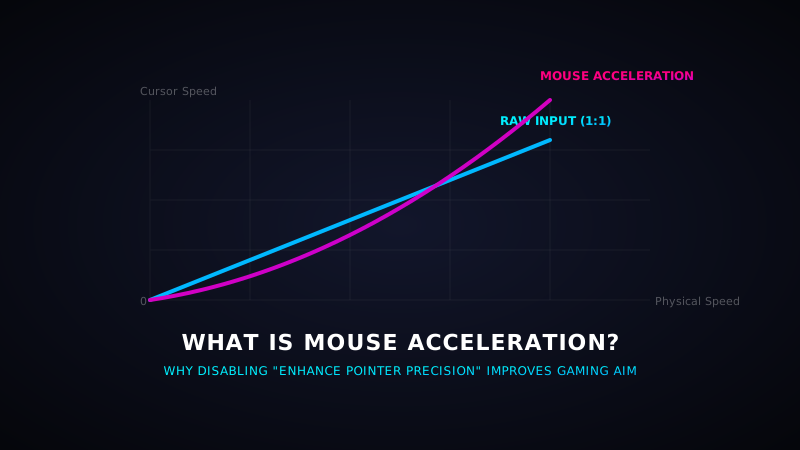
Normally, mouse movement operates on a **1:1 ratio** (Raw Input). If you slide your mouse 2 inches across your desk, your cursor moves a fixed distance on screen, regardless of how fast you moved it.
With **Mouse Acceleration** active, the cursor speed is determined by both the distance **and the velocity** of your physical swipe. If you move your mouse 2 inches slowly, the cursor moves a small distance. If you flick the mouse 2 inches instantly, the cursor flies across the entire screen.
2. Why Mouse Acceleration Ruines Aiming
Esports aiming relies on **muscle memory**. Your brain associates a physical wrist flick distance with a specific crosshair rotation angle. Because mouse acceleration adds "speed of movement" into the formula, the crosshair will land in a different place every time, making consistent aiming impossible.
Test Mouse Click Responsiveness
Disabled mouse acceleration? Now check your mouse clicking performance and CPS score using our diagnostic test pad.
Start CPS Tester3. How to Disable Mouse Acceleration in Windows (Enhance Pointer Precision)
Windows has mouse acceleration enabled by default under the name **Enhance Pointer Precision**. To disable it:
- Press the **Windows Key**, type
mouse settings, and press Enter. - Click on Additional mouse settings (located on the right sidebar or bottom of the window).
- In the Mouse Properties popup, select the Pointer Options tab at the top.
- Under the *Motion* section, uncheck the box next to Enhance pointer precision.
- Click Apply and then click OK.